> For the complete documentation index, see [llms.txt](https://docs.tivity.one/llms.txt). Markdown versions of documentation pages are available by appending `.md` to page URLs; this page is available as [Markdown](https://docs.tivity.one/overview/user-interface.md).
# User-Interface
## Default view
The default view of the platform is always displayed immediately after logging in. It is also the view of the end users (e.g. customers) of the applications, who then only have this view available.

1. User settings
2. Notifications
3. Chat
4. Search
5. Activity log
6. Apps
7. Workspaces
8. User area
9. Button to switch to edit mode (see [Edit Mode](#edit-mode))
10. Install published apps in this workspace (see [Publishing the Application](/building-an-application/application-setup/publishing-the-application.md))
### User settings
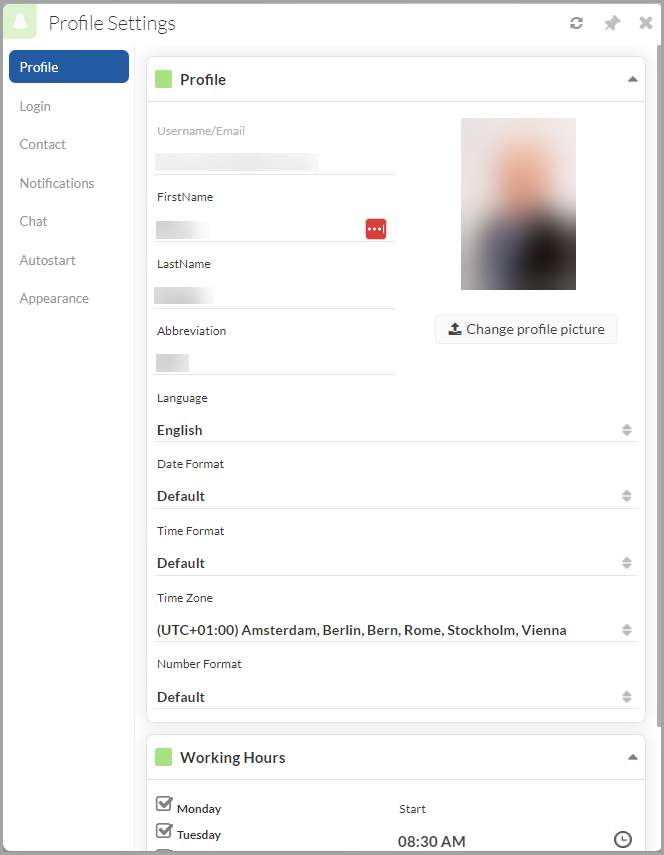
The user's account is managed in the user settings, for example the password, the photo, working time, the look of the interface and the background of the platform, the mode of delivery of notifications, etc.
{% hint style="info" %}
In the Profile Settings you can also set your language, date and time format, time zone and number format.
{% endhint %}
Profile Settings Sample
\
Not only the settings of your profile can be made in the User settings, but also other useful actions:
* Remove auth token: the authentication token is removed
* Restart application: restart the platform
* Clear repository cache: the serversite repository cache is cleared
* Account: the profile settings
* Notifications: opens the notification list
* Full screen modus
* Logout: log out from the platform
### Notifications
This opens the notifications list, in which the latest notifications for the logged on user are shown, for example
* a task has been assigned to the user.
* another person has shared information with the user.
As per the user settings selected, notifications are also sent via email and as browser pop-up, if configured accordingly. Notifications are also displayed with a small red mark on the notification symbol.
### Chat
Via Chat, the notified user can communicate with other platform users of the same organisation in real time. Chats can be organised in self-defined channels (=topics) or into files. The user, who has created a channel or a file chat, can decide which other users or user groups should be allowed to participate in that.
### Search
The database of the platform can be searched by entering a text. With a click on the input line, the search area can be determined as:
* either **All elements**: all data of files/terms/contacts etc. is searched, but not via full text search in the documents.
* or **Documents**: a full text search is executed in the documents.

There is no differentiation between upper case and lower case in both instances.
In both cases, several search terms can be specified, separated by spaces. The platform only provides those results in which all search terms appear.
It is also possible to explicitly exclude terms during search. This is done with a prefixed minus (-).
Example: The search text `Alpha Bravo -Charlie` searches for joint appearance of the words Alpha and Bravo, in which Charlie does not appear.
### Activity log
If the *Activity logs* has been enabled in the Admin Center, you can see here who has made which changes and when.
### Apps
All applications of the selected workspace are listed in the app area. Active apps that are also visible are highlighted in color.
#### App Pages
When you click on one of the apps to open it, the app landing/start page is shown. Opening another page from the landing page or another app while the already opened page(s) is/are pinned will order opened pages from left to right.
Page Order
You can reorder the pages by drag and drop of the page tabs.
Page Reordering by Drag and Drop
### Workspaces
The vertical panel on the far left shows the workspaces that the logged-in user has access to. The active workspace is highlighted in color.
{% hint style="warning" %}
Workspace name cannot contain an URL.
{% endhint %}
### User area
In the user area all users assigned to the active workspace are listed. Users can also be invited here for their own workspaces.
### Edit mode
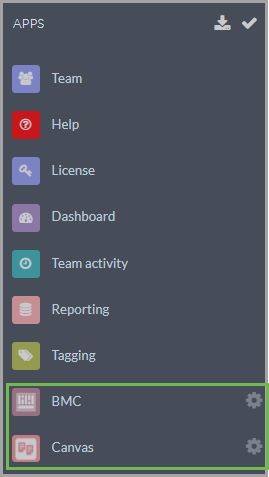
In this mode all applications are listed vertically.
Edit Mode with Configurable Apps
Right to the configurable apps (green frame) there are actions represented by toothed wheels . In dependance of for which app you want to do the configuration, you can get into the [Config Mode](/overview/user-interface.md#config-view) of the particular app by clicking on the toothed wheel next to it.
#### Export Multiple Apps
On the top right corner of the Edit Mode there is an option  to export multiple apps. Clicking on it opens new page where you can select apps which you want to export.
Apps Selection for Export
The versions of multiple applications in the same workspace can be set together and multiple applications can be downloaded in one archive.
When the version of multiple applications is to be set, then the new version is validated for each chosen application (with the existing validation).
When multiple applications are to be downloaded, then the chosen applications are downloaded as an archive.
## Config view
In the config view, apps are created and configured. This is done in different areas and with different designers.
{% hint style="info" %}
To switch to Config mode, press the button with the gear icon in the Default View (#9 in [screen above](/overview/user-interface.md#default-view)).
{% endhint %}

1. Displayed when you are in **Config Mode**
2. **Name** of the application you are currently in
3. **App** section: General settings of the app are made here
4. **Data** section: Configuration of the sources, the structures and the access of data
5. **Views** section: Creating the app layouts and templates
6. **Execution** section: Executable elements such as functions, workflows or triggers can be created and edited here
7. Button to **leave the Config Mode**
### App
App settings and configuration are made in the **App** section.In addition to managing the life cycle of the application, you can create documentation for the app. More details in [Application Setup](/building-an-application/application-setup.md).
These options are available in the section:
* **General**: General settings of the application
* **Documentation**: Editor for creating documentation for this app. This is published together with the app
* **Licence**: Managing the licensing for this app (see [License management](/building-an-application/application-setup/license-management.md))
* **Advanced configuration**: Special configurations can be entered here directly as text in an editor (see [Advanced Settings](/building-an-application/application-setup/advanced-settings.md))
### Data
In the section **Data** everything that has to do with data can be configured and edited. The data sources can be set up, data structures created and queries configured. The access to the data can be controlled here in detail. More details in [Data](/building-an-application/data.md).
These options are available in the section:
* **Data source**: View the available data sources
* **Sources**: Adding and renaming adapter (sources)
* **Classes**: Designer for modelling the data structure (see [Data Modelling](/building-an-application/data/data-modelling.md))
* **Queries**: Designer to manage queries and define the data selection (see [Query Data](/building-an-application/data/query-data.md))
* **Rights**: Allows to granularity specify the access rights of single users on specific data fields (see [Roles & Permissions](/managing-users-and-collaboration/roles-and-permissions.md))
* **ACL**: Access Control Lists, regulates the access to objects of a class (see [Access Control Lists](/managing-users-and-collaboration/access-control-lists-acl.md))
### Views
Interface design on the platform is done in section **Views**.
These options are available in the section:
* **Layouts**: Designer to create graphical user interfaces (or layouts) for your application (see [Design UI](/building-an-application/views/design-ui.md))
* **Templates**: Designer to create standardized documents like letters or reports and fill them dynamically with information (see [Document Templates](/building-an-application/views/document-templates.md))
### Execution
The **Execution** section contains all elements that can be executed at runtime. This includes functions, workflows and triggers. The settings can be made comfortably in the respective designers. It should also be mentioned that there is a certain hierarchical dependence. Workflows can be executed in triggers. And functions can be executed in workflows.
These options are available in the section:
* **Functions**: Designer to add custom functionality to your app (see [Scripting](/building-an-application/execution/scripting.md))
* **Workflows**: Used on the platform to define more complex and dynamic actions in your application (see [Workflows](/building-an-application/execution/workflows-and-application-logic.md))
* **Trigger**: Designer for define temporal or level (hooks) triggering of a workflow